
Chat
The Chat page is the main agent conversation view and the only sidebar entry every user can access. Everything else is admin-only; this is where regular users live.
It's a streaming, persistent conversation with the configured agent — messages flow over a WebSocket, attachments upload through a separate REST endpoint, and the page reconnects automatically if the socket drops.
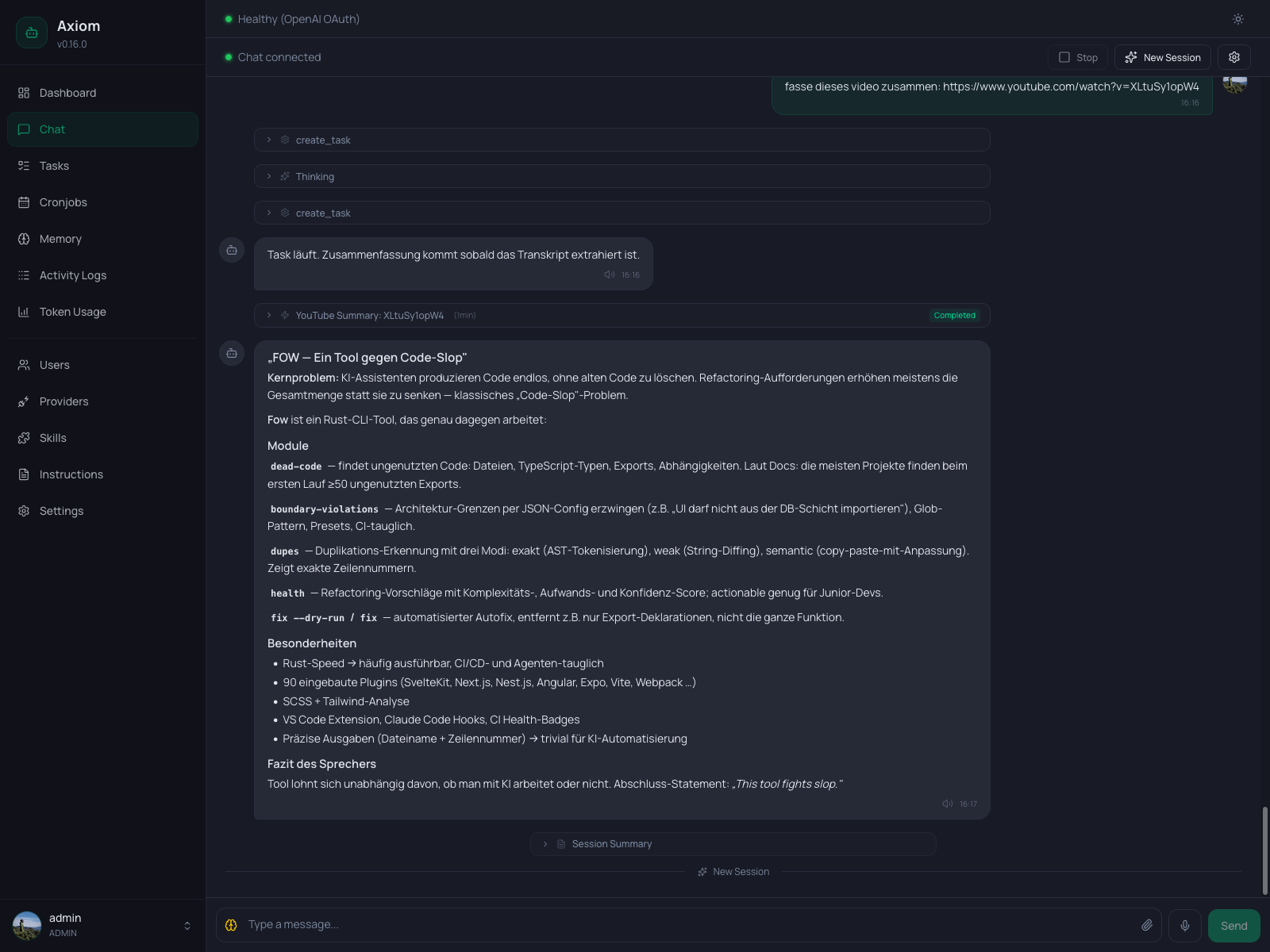
Toolbar
The top of the page has a slim toolbar (PageHeader). On mobile its action buttons collapse into the global header bar so the second row disappears.
Left side — connection dot:
| Dot color | State |
|---|---|
| Green | Connected. Messages flow live. |
| Amber | Connecting / reconnecting. The WebSocket is mid-handshake. |
| Gray | Disconnected. Send is disabled until the socket comes back. |
Right side — actions:
- Stop — aborts whatever the agent is currently doing (only enabled while a response is streaming). Equivalent to typing
/stopin chat or hitting the Kill button on the parent task. - New Session — closes the current chat session and starts a fresh one. The divider appears immediately; a Session Summary card may fill in shortly after once background generation completes (see Memory System → session summaries for how that works). The next message you send opens a new session.
- Settings (gear icon) — display filters, see below.
Display filters
The gear icon opens a popover with four toggles. Settings are persisted to localStorage per browser, so each operator can have their own view.
| Filter | Default | What it shows |
|---|---|---|
| Tool Calls | On | Collapsible cards for each tool the agent invoked. |
| Injections | Off | Background-task results and periodic status heartbeats. |
| Session Summaries | Off | The summary card above each session divider. |
| Thinking blocks | On | The collapsed Thinking card before each assistant turn (if any). |
Hiding a category never deletes anything — toggling the filter back on brings the messages right back.
Message types
The chat renders many distinct shapes besides plain text. Knowing them helps when scanning a long conversation.
Plain messages
User messages are right-aligned with a colored bubble; assistant messages are left-aligned with a neutral bubble. Both render Markdown (assistant fully, user verbatim) and support code blocks, lists, and inline formatting.
A small timestamp below each message shows the local time. For assistant messages, a speaker icon appears alongside if Text-to-Speech is enabled — click it to read the message aloud (or stop playback).
Telegram-tagged messages
Messages that came in via Telegram show a small Telegram badge on the avatar and a "via Telegram" label above the bubble. If a Telegram message was a reply to an earlier one, a quoted line appears at the top of the bubble (Replying to: "..."). Assistant messages that were also delivered to Telegram are tinted blue and labeled the same way.
Thinking cards
When the agent uses a reasoning model, its thinking appears as a collapsed card titled Thinking before the actual reply. Click to expand. While the model is still thinking, a pulsing dot row indicates streaming. Hide all thinking cards via the Thinking blocks filter.
Tool call cards
Every tool the agent invokes shows up as a collapsible card with the tool name and an icon. Expanding the card shows:
- Input — the arguments passed to the tool.
- Output — the tool's result, or an error message in red if the call failed.
Two special cases get richer rendering:
- Memory edits — when the agent edits
SOUL.md,MEMORY.md,AGENTS.md, a daily file, or a wiki page, the card renders an inline diff instead of raw input/output. - Skill loads — when the agent loads a skill (e.g.
tasks-and-cronjobs), the card title showsLoad Skill: <name>with a puzzle icon.
Background task cards
Two flavors, both shown only when Injections is enabled:
- Periodic update — a slim single-line row showing a running task's progress: runtime, tool-call count, token usage. Non-collapsible.
- Task result — a collapsible card with the task name, duration, and final status (
Completed,Failed,Question). Expanding it shows the task summary the agent injected into the chat.
See Tasks & Cronjobs concept for what these messages actually mean.
Session dividers
When you start a new session — or the agent does, after a long inactivity gap — a thin horizontal line appears with a small "New Session" label. Above it, a collapsible Session Summary card may be present (only when Session Summaries is enabled). The summary is what the next session sees as historical context.
Composer
The composer at the bottom has, from left to right:
Brain icon (admin-only) — quick switch for the thinking level (
off,minimal,low,medium,high,extra high). The icon color encodes the current level (gray → red). Changes apply immediately to the next turn.This is a global setting — the main agent is single-tenant, so switching here affects every chat. For a per-task override, use Cronjobs or
create_taskinstead.Text area — multi-line input.
Entersends,Shift+Enterinserts a newline. The box auto-resizes up to ~150px and then scrolls.Paperclip — opens a file picker. You can also drag and drop files onto the chat area; an overlay appears while dragging.
Microphone (if Speech-to-Text is enabled) — push-to-talk: hold to record, release to transcribe. The button color encodes recording state, transcribing state, and any error (permission denied, recording too short, generic error).
Send — disabled when the textarea is empty or the connection is down.
On mobile the mic and send buttons swap based on whether you've typed anything: empty input shows the mic, any text shows send. This mirrors Telegram and WhatsApp.
Attachments
Pending files appear as chips above the composer. Click × on a chip to remove it before sending. Once sent, attachments render below the message body — images inline, other files as download chips.
Where attachments end up on the backend, how long they're kept, and the upload limit live in Settings → Agent → Upload retention.
Slash commands
Messages that start with / are intercepted by the chat client and answered locally instead of being forwarded to the LLM. The same vocabulary is shared with the Telegram bot, so muscle memory carries between surfaces.
| Command | What it does |
|---|---|
/help | List all available slash commands. |
/new | Summarize the current session, persist it, and start a fresh conversation. |
/stop | Abort the current agent turn and clear queued work. (alias /kill) |
/tasks | Show running and recent background tasks (read-only). |
/cronjobs | Show configured cronjobs and their next run time. (alias /cron) |
/model | Show or switch the active provider and model. (alias /provider) |
/thinking | Show or set the global main-agent thinking level. |
/skill | Load a skill into the current conversation. (/skill:<name> [prompt]) |
On the web chat, /model (and its alias /provider) responds as an interactive button group: provider picker → model picker → confirmation. Selecting a model writes providers.json and switches the active model for the next turn.
/thinking accepts off, minimal, low, medium, high, or xhigh. Like the brain-icon selector, it changes the global main-agent setting and applies to the next turn.
/skill:<name> injects a skill's SKILL.md into the conversation so the agent follows it from now on — the same instructions it would read when it picks the skill itself. Both self-created agent skills (by name) and enabled installed skills (by owner/name) can be loaded. Typing /skill: opens an autocomplete dropdown listing every loadable skill; pick one with ↑/↓ and Tab/Enter. Append a prompt on the same line (/skill:deploy ship v2 to staging) to load the skill and run the request in one go, or send just /skill:<name> and the agent confirms the skill is loaded and waits for your next message. A bare /skill shows a button picker. Unknown names reply with the list of available skills.
Unknown commands respond with a hint pointing at /help and are not sent to the agent. To send a literal message that starts with a slash to the agent anyway, prefix it with a second slash — inputs starting with // bypass the slash-command interception and are delivered to the agent verbatim.
Reconnecting
If the WebSocket drops (network blip, server restart), the connection dot turns amber and the client reconnects automatically with backoff. Messages you sent before the drop arrive when the socket is back. The Send button stays disabled while disconnected.
Keyboard shortcuts
| Shortcut | Action |
|---|---|
Enter | Send message. |
Shift+Enter | Newline in the composer. |
Cmd/Ctrl+C | Copy selected message as Markdown. |
See also
- Memory System — how session summaries, sessions, and reply context are persisted.
- Tasks & Cronjobs — the architecture behind the task-result and heartbeat cards.
- Settings → Agent — provider, model, language, reasoning level.
- Settings → Speech-to-Text and Text-to-Speech — voice input and output.
- Settings → Telegram — how Telegram-tagged messages get into the chat.