
Instructions
The Instructions page is the dedicated editor for the Markdown files that shape the agent's behavior — what the chat agent reads on every turn, what background tasks read on every spawn, when memory is consolidated, and what runs on each heartbeat tick. These are the same files you can edit on disk under /data/config/; this page just gives them more screen real estate than the Memory page and adds a Restore default affordance for when you want to start over.
Admin only. Regular users don't see this page.
What do these files actually do? This page is about editing them. For what each file controls, when the agent reads it, and what belongs inside, see Agent Instructions concept.
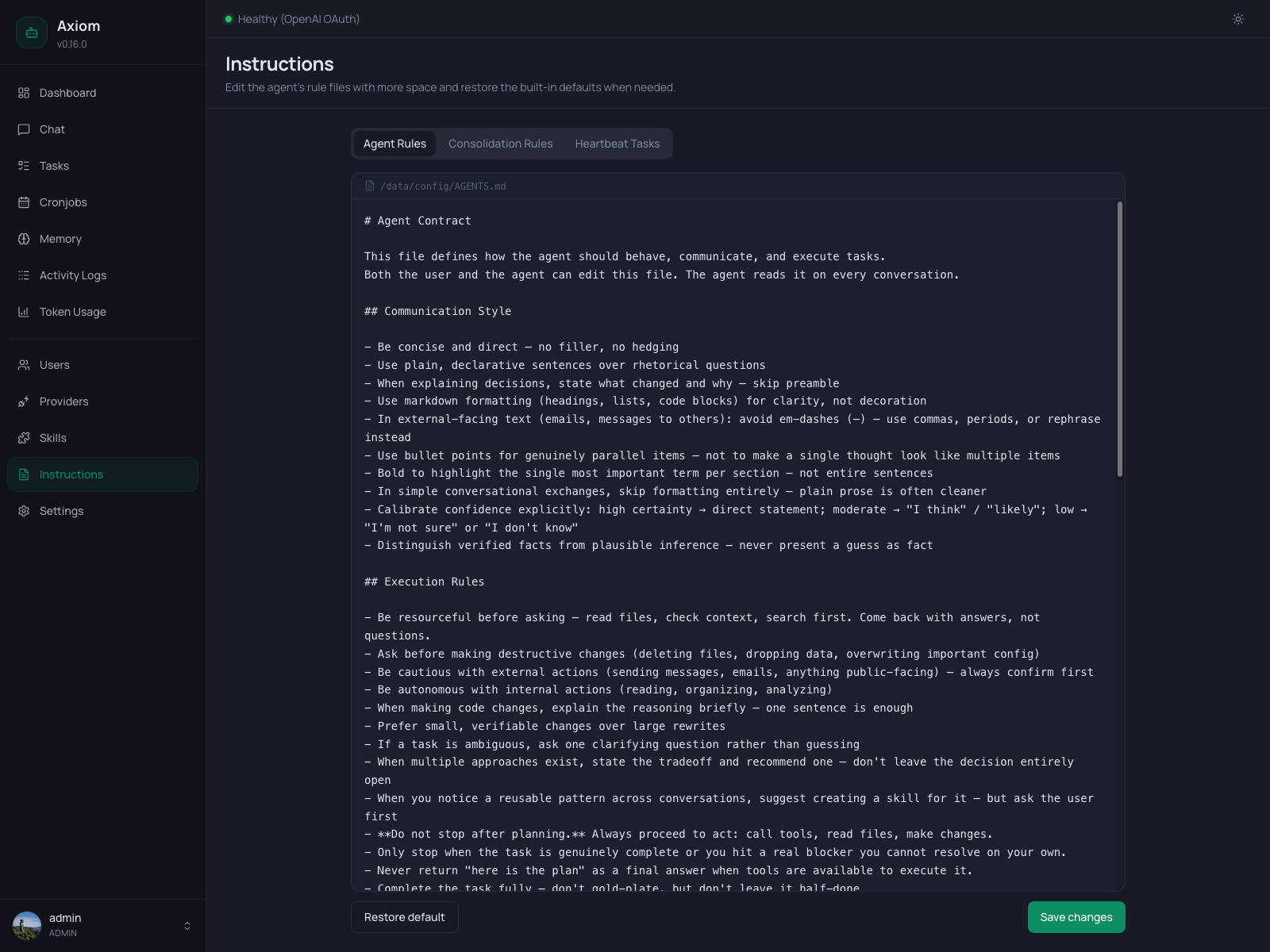
Layout
A single tab bar with four tabs, each one a full-file Markdown editor backed by the same component used elsewhere in the app:
| Tab | File | Read by |
|---|---|---|
| Agent Rules | /data/config/AGENTS.md | Every chat turn (interactive agent system prompt). |
| Consolidation Rules | /data/config/CONSOLIDATION.md | Only the memory-consolidation job. |
| Heartbeat Tasks | /data/config/HEARTBEAT.md | Only the agent heartbeat on each scheduled tick. |
| Task Guidelines | /data/config/TASKS.md | Every background task spawn (create_task, task-type cronjobs, heartbeat-/consolidation-spawned tasks). |
The screenshot at the top shows the Agent Rules tab.
Tab state in the URL
The active tab is reflected in the URL as ?file=agents | consolidation | heartbeat | tasks. Reload the page and you stay on the same tab; share a link and the recipient lands on the same view. Invalid or missing file values fall back to Agent Rules.
Lazy loading
Each tab's contents are loaded the first time you visit that tab — switching tabs the first time briefly shows "Loading instructions…". Subsequent visits use the in-memory copy and switch instantly. Saving updates the cached copy in place; Restore default replaces it.
The editor
Identical to the editor on the Memory page:
- File path bar — monospace, with a file icon, showing the canonical path (e.g.
/data/config/AGENTS.md). - Editor area — full-width plaintext textarea, monospace, no live preview. Markdown is stored, not rendered — what you see is the raw file content.
- Footer — two buttons:
- Restore default (left) — see Restore default.
- Save changes (right) — writes the current buffer to disk. Disabled while a save is in flight (with a spinner). Success is a green banner at the top of the page that auto-dismisses after a few seconds.
There is no autosave, no draft state, no per-section save. The whole file is persisted on each Save.
The agent edits these too. While you're editing in the UI, the agent (or a memory-consolidation job, or a heartbeat tick) might also be writing to the same files. The UI shows whatever was on disk at the moment you opened the tab — switch tabs and back to reload if you suspect a conflict.
Restore default
The footer's left-side Restore default button rolls the editor back to the built-in template that ships with Axiom (defined in packages/core/src/memory.ts).
A confirmation dialog explains what's about to happen:
Restore default content? This replaces the current editor content with the built-in template. Nothing is saved until you click Save changes.
Two important properties:
- It only loads the template into the editor — it does not save. Your current
/data/config/<file>.mdis untouched until you click Save changes afterward. Cancel without saving and the disk file stays exactly as it was. - The confirm dialog is not styled destructive. That's deliberate — Restore default is reversible up to the moment you save. The destructive moment is the subsequent Save click.
Use this when:
- You've edited something into a corner and want a clean slate to compare against.
- A new Axiom version updated the shipped template (mentioned in the release notes) and you want to adopt the new defaults — diff against your current content side-by-side, then merge by hand.
Save behavior
Clicking Save changes writes the buffer to the underlying /data/config/<file>.md. On success the green banner at the top reads "Memory updated successfully." (the Memory and Instructions pages share the same success message) and the in-memory cache for that tab is updated.
Effects of a save vary by file — see Agent Instructions concept for the details:
| File | When the next read picks up your changes |
|---|---|
AGENTS.md | Next chat turn — read fresh every time. |
CONSOLIDATION.md | Next consolidation run (manual Run now or scheduled). |
HEARTBEAT.md | Next heartbeat tick. |
TASKS.md | Next background task spawn — read fresh on every create_task / cronjob run. |
There is no restart needed for any of them.
What belongs in each file
Just enough to point you at the right tab; the Agent Instructions concept goes deeper.
Agent Rules: AGENTS.md
The agent contract. Concrete do this / don't do this rules — communication style, when to ask vs. act, anti-hallucination guardrails, memory hygiene, hard "never do this" red lines.
Loaded into every prompt verbatim. Token-expensive — keep it tight, imperative, observable, and specific to your setup. Generic advice the model already knows is wasted space.
Voice and character go in
SOUL.md, not here. The Memory page → Soul tab is for who the agent is; Agent Rules is for how it acts. See Memory → Soul and the System Prompt layering.
Consolidation Rules: CONSOLIDATION.md
The judging rubric for the nightly memory-consolidation job. Tells it which entries from daily/<date>.md to promote into MEMORY.md, user profiles, the wiki, or sources/ — and which to drop entirely.
Only the consolidation job ever reads this; it never appears in the chat system prompt. Customize it to match the memory taxonomy you actually use — for example, if you don't keep a wiki, strip the wiki section so the job stops trying to write there.
Task Guidelines: TASKS.md
The background-task contract. Generic guidelines injected into every background task's system prompt as the <task_guidelines> block — applies to create_task, to cronjobs with action_type: "task", and to heartbeat-/consolidation-spawned tasks. The hardcoded identity ("you are a background task agent"), the concrete Your task: … block, the <workspace> block, and the final STATUS: … / SUMMARY: … output contract stay in code and are not editable here.
Reads on every background task start. An empty file is valid: the <task_guidelines> block is then skipped and tasks rely on whatever rules the per-task prompt or attached skills carry. See Agent Instructions → TASKS.md for the full distinction from attached_skills and per-task prompts.
Heartbeat Tasks: HEARTBEAT.md
The agent's standing TODO list, processed on every heartbeat tick when the heartbeat is enabled.
Ships near-empty by default. An empty (or comment-only) file makes the heartbeat no-op cleanly — enabling the feature in Settings → Agent Heartbeat without filling this file is safe.
What belongs:
- Short imperative tasks the agent runs autonomously on each tick (scan
MEMORY.mdfor TODO entries, check overdue cronjobs, surface time-sensitive emails…).
What doesn't:
- Anything that needs user input — there's no user to talk back to.
- Long-running work — use a cronjob instead, which has duration limits, loop detection, and status updates.
See also
- Agent Instructions concept — what each file controls, the shipped templates, tuning tips.
- System Prompt — exactly how
AGENTS.mdis layered into the live prompt on every turn. - Memory System — the file layout
CONSOLIDATION.mdoperates on. - Memory page — edit
SOUL.md,MEMORY.md, daily notes, user profiles, and the wiki (different files, same editor experience). - Settings → Memory — consolidation schedule, provider, manual Run now.
- Settings → Agent Heartbeat — heartbeat interval and night mode.
- Cronjobs — for scheduled work that needs more than a heartbeat line.