
Providers
The Providers page is where you configure which LLM endpoints Axiom can talk to — API keys, OAuth subscriptions, base URLs, model lists, costs. Every row you add here becomes selectable as the active provider for chat, the default for tasks, and the optional fallback for the Health Monitor.
Admin only. Regular users don't see this page.
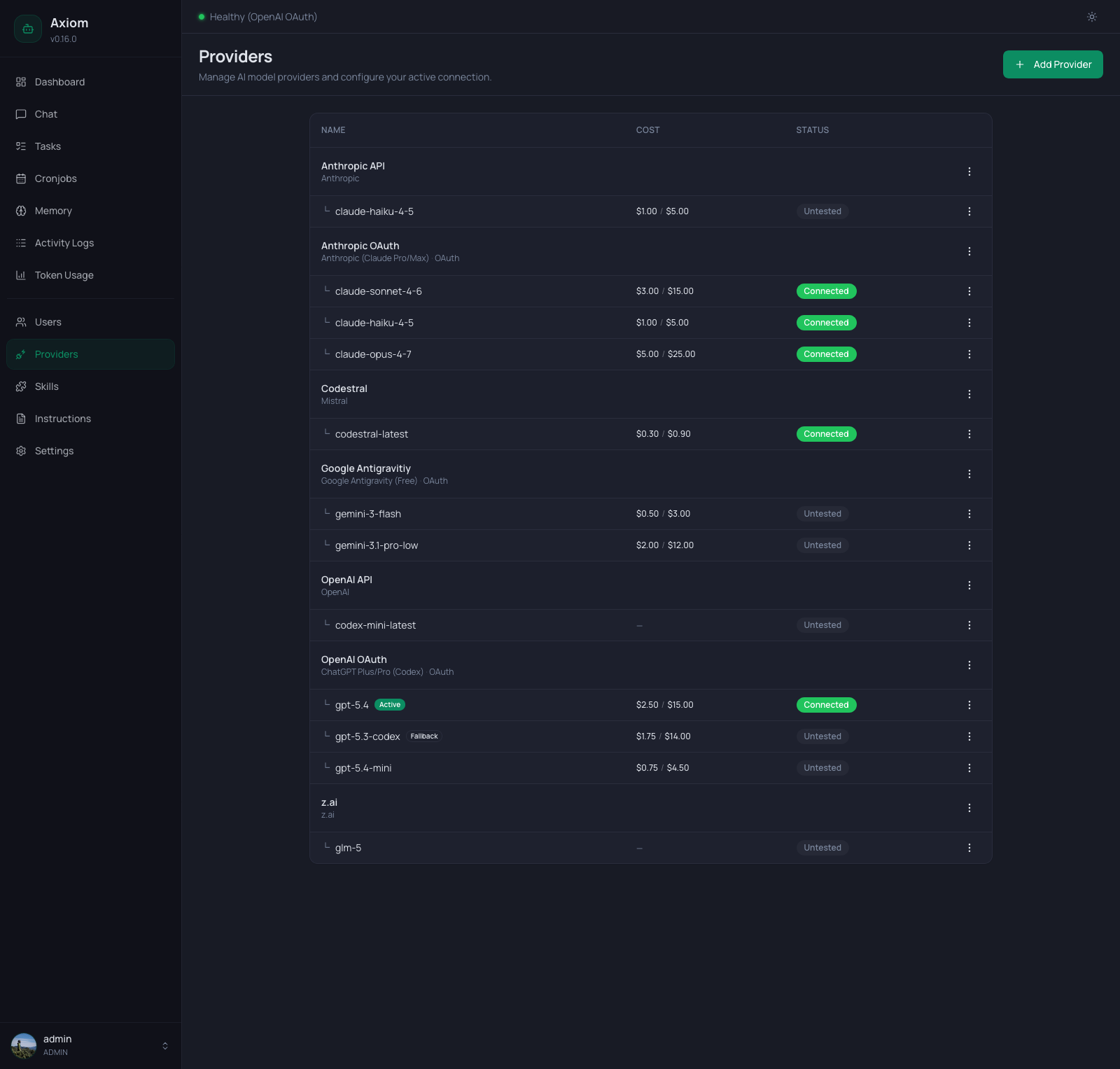
Header
A single primary button on the right:
- Add Provider — opens the provider form dialog.
There is no Refresh button — the list re-loads after every successful add / edit / delete / test.
Two-level table
The table renders providers in two tiers:
- Provider header rows — one per configured provider. Show the display name and the underlying type (e.g.
Anthropic,OpenAI,Mistral,z.ai). OAuth providers additionally showOAuthafter the type label. - Model sub-rows — one per enabled model on that provider, indented with
└. Each carries its own cost, status, and per-model actions.
Providers are sorted alphabetically by display name; sub-rows follow the order configured in the provider form.
Provider header columns
| Column | Notes |
|---|---|
| Name | Bold display name; below it, the provider type label (e.g. "Anthropic", "Anthropic (Claude Pro/Max) · OAuth"). |
| Cost | Empty — costs live on the model rows. |
| Status | Empty for most providers (status lives on the model rows). For subscription (OAuth) providers it shows the live subscriber usage quota. |
| ⋮ | Add Model, Edit, Delete, and — for quota-capable OAuth providers — Refresh quota. Delete is disabled for the provider that owns the currently active model. |
Clicking anywhere on a header row opens the Edit dialog.
Model sub-row columns
| Column | Notes |
|---|---|
| Model | Indented model id; small badges for Active (green) and Fallback (outline). Both can appear on the same row in theory, but the active model is never also the fallback. |
| Cost | $<input> / $<output> per million tokens. Shown as — when no cost is configured for that model. |
| Status | One of Untested, Connected, Error — see Statuses. |
| ⋮ | Test Connection, Set Active, Set Fallback, Remove Fallback, Edit Model, Remove Model — context-aware (see Per-model actions). |
Statuses
The status badge reflects the result of the last manual test of that specific model — not the live health-check state from the Health Monitor.
| Badge | Meaning |
|---|---|
Untested | Default for newly added models — no Test Connection has been run. |
Connected | The last test succeeded. A green banner with the test's response time briefly appears at the top. |
Error | The last test failed. The error message appears in a red banner at the top. |
While a test is running, the badge is replaced by an inline spinner with the label "Testing…".
For ongoing health monitoring (latency thresholds, automatic fallback switchover), see Settings → Health Monitor.
Active vs. Fallback
Exactly one model is active at any time — that's the model the chat agent uses by default and the one the Dashboard shows as healthy/degraded. At most one other model is the Fallback — the Health Monitor switches to it automatically when the active provider becomes unhealthy.
- The
Activebadge in the screenshot above sits ongpt-5.4because that's the configured default. - The
Fallbackbadge sits ongpt-5.3-codex— whengpt-5.4goes down, the agent transparently routes togpt-5.3-codexuntil the Health Monitor recovers the primary.
You set both from the row menu — see Per-model actions. To change the task default (used by background task agents), go to Settings → Tasks instead — that's a separate setting.
Per-model actions
The ⋮ menu on each model row carries up to six items, shown only when relevant:
| Item | When it appears |
|---|---|
| Test Connection | Always. Sends a small request to the provider/model and updates the status badge. |
| Set Active | When this model is not already active. Promotes it to the global active model. |
| Set Fallback | When this model is neither active nor the current fallback. |
| Remove Fallback | Only on the current fallback model. Clears the fallback selection. |
| Edit Model | Always. Opens the Edit Model dialog to set or clear a description and per-token costs. |
| Remove Model | Always (but disabled in two cases — see below). |
Removing a model
Remove Model opens a confirmation dialog:
Remove model
<model>from provider<provider>? This does not uninstall the model, it only removes it from this provider's list.
Two rules guard against breaking your setup:
- The active model can't be removed. Switch to a different active model first, then come back.
- The last remaining model can't be removed. If you genuinely want to drop a provider's only model, delete the whole provider instead.
A few automatic adjustments happen on confirm:
- If you remove the model that was set as fallback, the fallback is cleared first.
- If you remove the model that was the provider's default, the next remaining model becomes the new default automatically — the form doesn't reopen.
Add / Edit dialog
Opened by Add Provider or by clicking a provider header row. The form is small and adapts heavily to the chosen provider type.
Common fields
The dialog keeps connection details first, then model selection, then advanced health settings:
| Field | Notes |
|---|---|
| Name | Free text, your label for this provider — appears in the table, in <task_injection> blocks, on the Dashboard. |
| Type | Dropdown grouped into two sections: API Key (OpenAI, Anthropic, Mistral, OpenRouter, DeepSeek, Kimi / Moonshot, MiniMax, xAI (Grok), Google Gemini, OpenCode Zen, OpenCode Go, Radius (API key), Ollama, generic OpenAI-compatible, …) and Subscription / OAuth (Anthropic Claude Pro/Max, OpenAI ChatGPT Plus/Pro, GitHub Copilot, Radius, z.ai (GLM Coding Plan), …). |
| Base URL | Shown directly after Type when the preset has an editable URL (Ollama, generic OpenAI-compatible, …). |
| API Key | Shown after Base URL for API-key providers. Required for most hosted presets, optional for local/custom providers that do not need auth. |
| Model | Model selector for this provider. Shown only in create mode — after creation, models are managed via Add Model and Edit Model from the row menus. The exact control depends on the provider type. The first enabled model acts as the provider's default/primary model. |
| Degraded Threshold | Last field in the form. Latency in ms above which the provider is marked Degraded in health checks. Default 5000. Lower = more sensitive. |
| Text verbosity | Shown for supported OpenAI Codex/Responses-style providers. Default leaves the value unset so pi-ai's provider default applies; Low, Medium, High override response verbosity. |
| Transport | Shown for the same OpenAI Codex/Responses-style providers as Text verbosity. Selects the wire-level streaming protocol: Default (SSE) leaves the value unset, SSE, WebSocket, WebSocket (cached), or Auto. WebSocket (cached) keeps a persistent connection open and ships only delta context items per turn — noticeably faster on long agent sessions. Ignored (and dropped on save) for every other provider type. See providers.json → Transport modes for the full table. |
API-key providers
When you pick a type from the API Key group, the fields appear in this order:
Base URL
Only visible for presets where the URL is editable (Ollama, generic OpenAI-compatible, …). For Ollama the placeholder shows the default http://localhost:11434/v1.
API Key
A password field. Required for most presets, optional for ones that don't strictly need authentication (e.g. an unauthenticated local OpenAI-compatible server). In edit mode the field is empty and the hint reads "Leave empty to keep existing key" — only type a value if you want to replace the stored secret.
Stored encrypted at rest in /data/config/providers.json using ENCRYPTION_KEY. See Configuration.
Model
The model selector adapts to the preset. It is shown only in create mode — after a provider exists, you add and remove models via the Add Model dialog and the row-menu actions instead. The Ollama panel (below) is the exception: it stays available in edit mode because pulling and managing local models is Ollama-specific.
- Curated providers (OpenAI, Anthropic, Mistral, DeepSeek, Kimi / Moonshot, MiniMax, xAI (Grok), OpenCode Zen, OpenCode Go, …) — a dropdown of known models. Pick the one you want; it becomes the provider's initial enabled model and acts as its default until you enable more. If the model you need isn't in the catalog, type its id in the custom-model field below the dropdown and click Add. OpenCode Zen and Go source their catalog (models, per-token costs, per-model API type) directly from the bundled
@earendil-works/pi-airegistry, so they stay in sync with OpenCode Zen whenever that dependency is updated — no manual price table to maintain. - Dynamic-catalog providers (OpenRouter) — in create mode this behaves like the curated dropdown above (bundled catalog). Once the provider exists, the Add Model dialog fetches the model list live from the provider's own
/modelsendpoint (using the stored base URL and API key) instead of the bundled catalog, so newly published models appear without waiting for an Axiom release. If the live fetch fails, Axiom falls back to the bundled@earendil-works/pi-aicatalog so the picker still works offline. - Radius (
radiusvia OAuth,radius-api-keyvia an organization API key) — Radius is Earendil's Pi-native gateway (prepaid credits, routing, rewrite rules). It has no bundled catalog: the model list, prices, context windows and thinking-level support are fetched from the gateway's public/v1/configendpoint and cached inconfig/radius-catalog.json. The cache is refreshed when the create-mode model dropdown loads (if older than six hours), every time you open the Add Model dialog, and on backend start when a Radius provider exists and the cache is stale. Refreshes triggered by an existing provider use its credential so organization-private (BYOK) models are included. The OAuth variant uses the device-code flow: Axiom opens the Radius pairing page (with the code pre-filled) and also shows the code in the dialog, so it works for remote deployments. Radius speaks Pi's nativepi-messageswire protocol, not the OpenAI API. - Generic OpenAI-compatible — free-text model-id entry plus an optional Load models button for providers that implement OpenAI's
/modelsendpoint. - Ollama — a separate panel with its own controls (see below).
Degraded Threshold
Always shown last once a provider type is selected. It controls the latency threshold used by health checks.
Custom OpenAI-compatible providers
Pick OpenAI-compatible (custom) from the API Key group whenever you want to talk to a service that exposes the OpenAI POST /v1/chat/completions wire format but doesn't have a dedicated preset in Axiom — for example NVIDIA NIM (build.nvidia.com), self-hosted vLLM, LM Studio, llama.cpp's OpenAI server, Cloudflare AI Gateway proxies, or in-house deployments.
Unlike the curated presets, this type carries no model catalog and no fixed endpoint:
| Field | What to enter |
|---|---|
| Name | Any label (e.g. NVIDIA NIM, Local LM Studio). |
| Type | OpenAI-compatible (custom). |
| Base URL | The endpoint root that exposes /v1/chat/completions. Required. |
| API Key | Optional. Leave blank for unauthenticated local servers; paste the upstream key for hosted services. |
| Model | Add one or more exact model ids the upstream API expects (e.g. meta/llama-3.1-405b-instruct, qwen2.5-coder-32b). Use Load models when the provider supports OpenAI's /models endpoint. No prefix is stripped. Shown only in create mode; after creation, use Add Model from the provider menu. The first model added acts as the provider's default. |
| Degraded Threshold | Optional latency threshold override; defaults to 5000 ms. |
The provider is wired through pi-ai's openai-completions API, so streaming, tool-calling, and reasoning capture work the same way they do for the regular openai preset.
Example: NVIDIA NIM (build.nvidia.com)
- Grab a key from https://build.nvidia.com (header
Authorization: Bearer nvapi-…). - Add Provider → pick OpenAI-compatible (custom).
- Fill the form:
- Name →
NVIDIA NIM - Base URL →
https://integrate.api.nvidia.com/v1 - API Key →
nvapi-… - Enabled Models → click Load models or add ids manually, e.g.
mistralai/mistral-medium-3.5-128b
- Name →
- Save, then hit Test on the model row to confirm the endpoint and key are good.
Possible NVIDIA NIM chat models (as of 05/2026)
NVIDIA's catalog changes over time and includes non-chat models (embedding, rerank, image, speech, safety, parsing). Only add models that successfully pass Test Connection in Axiom.
Current reliability note (05/2026): NVIDIA NIM's hosted/free endpoints can be very slow or intermittently fail with API errors/timeouts. The service appears overloaded at times. Treat these models as experimental until repeated Test Connection runs and real chat usage are stable for your account/region.
Models that fit Axiom's OpenAI-compatible chat-completions integration:
mistralai/mistral-medium-3.5-128bgoogle/gemma-4-31b-itmoonshotai/kimi-k2.6minimaxai/minimax-m2.7
Example: Local LM Studio / vLLM
- Start LM Studio's OpenAI server (defaults to
http://localhost:1234/v1) or avllm serve …instance. - Add Provider → OpenAI-compatible (custom).
- Fill in:
- Name →
LM Studio - Base URL →
http://localhost:1234/v1 - API Key → leave blank (LM Studio ignores it)
- Enabled Models → click Load models or add the loaded model id manually, e.g.
qwen2.5-coder-32b-instruct
- Name →
- Save → Test.
If the upstream service requires a non-standard wire format (Anthropic-Messages, Google Gemini, …) use the matching dedicated preset instead — this type is strictly for OpenAI chat-completions semantics.
Ollama-specific controls
Picking the ollama type swaps the model selector for a dedicated Ollama panel:
- Refresh button — loads installed models from the Ollama API at the configured Base URL.
- Installed models — checkbox list with model name, parameter size, quantization, and on-disk size. Tick the ones you want to enable on this provider.
- Pull Model — type a model name (e.g.
llama3,gemma4,mistral) and hitPull. A live progress bar shows the percentage and the current pull stage. On success the model appears in the list above and can be ticked.
If Ollama can't be reached, you see a destructive banner with "Could not reach Ollama" and a retry link.
OAuth providers
Picking a type from the Subscription / OAuth group changes the form's submit button: instead of Save, you see Login & Connect.
The full flow:
- Type a Name, pick the OAuth provider type, optionally tick which models to enable.
- Click Login & Connect. A new browser tab opens with the provider's auth page.
- Complete the login. The dialog updates to "Waiting for authentication…" with a spinner.
- Once the redirect comes back, the dialog closes and the provider appears in the list.
Remote server fallback. If your Axiom instance runs on a remote box where the OAuth callback URL can't reach you, a manual-code field appears below the spinner: "Or paste the redirect URL here (for remote servers)". Complete the login locally, copy the full redirect URL from the browser, paste it in, and click Submit.
Subscriber usage quota
For subscription-style providers that expose a usage endpoint, the provider header row's Status column shows how much of your subscription allowance is left, polled in the background (no manual action needed). Quota is currently supported for:
- Anthropic Claude Pro/Max (
anthropic-oauth) - OpenAI ChatGPT Plus/Pro (Codex) (
openai-codex) - OpenCode Go (
opencode-go) — see the credential note below - z.ai (GLM Coding Plan) (
zai-coding) — read from the subscription API key; the pay-per-tokenz.ai(zai) provider has no quota endpoint - Radius (
radiusvia OAuth andradius-api-key) — shows the organization's prepaid credit balance instead of usage windows (see below)
Other provider types never show quota — they have no usage endpoint.
Radius credit balance
Radius is pay-as-you-go, so there are no rate-limit windows. The Status column shows the available credit (balance minus the amount reserved for in-flight requests) as a currency amount, plus what has been charged in the current billing period, e.g. Credits: $8.97 ($0.01 this period). It turns red once the available balance reaches zero. The data comes from the gateway's /v1/billing endpoint using the same credential as inference (OAuth access token or organization API key).
OpenCode Go is a special case
OpenCode Go has no official usage API. Its quota is read by scraping the authenticated web dashboard. Configure the provider's extra fields in the provider dialog:
- Workspace ID — the id from
opencode.ai/workspace/<id>/go - Dashboard Auth Cookie — a valid dashboard auth cookie (the
auth=prefix is optional)
Quota is only shown once both fields are set. Because it parses dashboard markup rather than a stable API, this integration can break if the dashboard layout changes; in that case the Status column falls back to "Quota unavailable" and inference is unaffected.
Each usage window appears on its own line as <window>: <utilization>% (<reset>). The exact windows depend on the provider:
| Provider | Windows | Reset shown as |
|---|---|---|
| Anthropic Claude | 5h (rolling 5h), 7d (rolling 7d), Opus / Sonnet (7d model-specific windows; only shown when above 0%). | 5h relative (e.g. 2h 14m); 7d/Opus/Sonnet weekday + time (e.g. Mon 3:00PM). |
| OpenAI ChatGPT (Codex) | Primary + secondary rate-limit windows (labelled by their length, e.g. 5h, 7d). | Primary relative; secondary weekday + time. |
| OpenCode Go | 5h (rolling), 7d (weekly), 30d (monthly). | 5h relative; 7d/30d weekday + time. |
| z.ai (GLM Coding Plan) | 5h (rolling), 7d (weekly). | 5h relative; 7d weekday + time. |
The percentage is colour-coded: green below 70%, amber at 70–89%, red at 90%+. Reset times and currency amounts follow your browser's regional settings.
The same active-provider quota is mirrored in the top bar next to the health status — but only on wide (lg) viewports, and only for the active provider. It is hidden on smaller screens and for non-active providers.
Refresh quota
The ⋮ menu on a quota-capable OAuth provider header carries a Refresh quota item that forces an immediate, on-demand fetch (bypassing the background poll's backoff). While it runs, the Status column shows a spinner with "Refreshing…"; on success a "Quota updated" banner appears briefly.
When quota is unavailable
These usage endpoints are aggressively rate-limited. Axiom applies a per-provider backoff on 429 responses and keeps the last good snapshot during transient failures instead of flapping to "unavailable". When there is no usable data, the Status column shows:
- "Rate-limited — try again shortly" — a
429was hit and no earlier snapshot exists yet. Wait a bit, or use Refresh quota later. - "Quota unavailable" — any other failure (auth error, network, …). Hover the text for the underlying error.
Renewing OAuth tokens
In edit mode for an OAuth provider, the dialog footer shows a Renew Token button on the left. OAuth refresh tokens have a fixed lifetime — when they expire, the model status flips to Error with an authentication failure. Click Renew Token to start the OAuth flow again with the existing provider record (no new row, no lost configuration).
Add Model dialog
Opened from the provider header row's ⋮ menu → Add Model. Lets you enable additional models on an existing provider without reopening the provider form.
- Search — filters the provider's model catalog by name or id. For most providers the catalog is fetched from the bundled
@earendil-works/pi-airegistry (same source as the create-mode dropdown). Dynamic-catalog providers (OpenRouter, Radius) instead fetch the list live from the provider (OpenRouter's/models, Radius'/v1/config), falling back to the bundled/cached catalog if that request fails. - Model list — scrollable, multi-select. Models already enabled on this provider appear greyed out with an "already enabled" label. Tick the ones you want to add.
- Custom model fallback — when your search text doesn't match any catalog entry, a button appears to add the typed id as a custom model (e.g. a manually published model not yet in pi-ai).
- Add — merges the selected models into the provider's enabled list. The footer shows the number selected.
If the catalog fetch fails, an error message with a retry link is shown.
Edit Model dialog
Opened from a model sub-row's ⋮ menu → Edit Model. Sets two things per model:
- Description — a free-form note describing what this model is suited for (e.g. "Fast model for text processing like Twitter/Reddit Digest"). The description is surfaced in the system prompt's
<available_providers>block and doubles as the opt-in gate for agent model routing: a model without a description (and that isn't the active or default task model) is hidden from the agent's routing list. Clear the field to remove a model from the routing list. - Cost — per-million-token input and output costs in USD. Cache read and cache write fields appear only for models whose resolved cost already carries cache values, or for Anthropic providers (which always support prompt caching). Leave any field empty to keep the existing value; enter
0for a free model.
Costs entered here override the catalog defaults. The dialog pre-fills with the model's existing entry (or catalog defaults if no entry exists yet).
Delete provider
The provider's row menu has a Delete item. Confirm dialog:
Are you sure you want to delete provider
<name>?
Rules:
- Can't delete the active provider. The button is disabled in the menu. Set a different model as active first.
- Linked secrets are removed too. The encrypted API key and any OAuth tokens for that provider are wiped from
/data/config/providers.json. - Per-cronjob pins. If a cronjob was pinned to this provider/model pair, it falls back to the default the next time it runs. To stop a cronjob from running on a missing provider, edit it under Cronjobs.
Empty state
When you have no providers configured yet, the table is replaced by a centered plug icon and the message "No providers configured yet. Add one to get started." with an inline Add Provider button.
This is what you see right after first install — until at least one provider is configured, the chat agent can't respond.
See also
- Configuration — encryption (
ENCRYPTION_KEY), where API keys live on disk. - Settings → Agent — choosing the active provider/model from the Settings side; same data, different entry point.
- Settings → Tasks — separate default provider for background task agents.
- Settings → Health Monitor — periodic health checks, automatic fallback switchover.
- Token Usage — actual spend per provider and model over time.