
Cronjobs
The Cronjobs page is where you manage everything that runs on a schedule — daily summaries, weekly digests, periodic checks, one-shot reminders. Each row is one entry in the scheduled_tasks table; firing a cronjob either spawns a full task agent or injects a static message into the chat, depending on its action type.
Admin only. Regular users don't see this page.
What is a cronjob? This page is about operating cronjobs. For the architecture — how the scheduler works, the 5-field cron grammar, auto-disable for one-shot patterns, the 55-second deduplication cooldown, the 5-second past-due grace, and why reminders are a separate tool — see Tasks & Cronjobs concept.
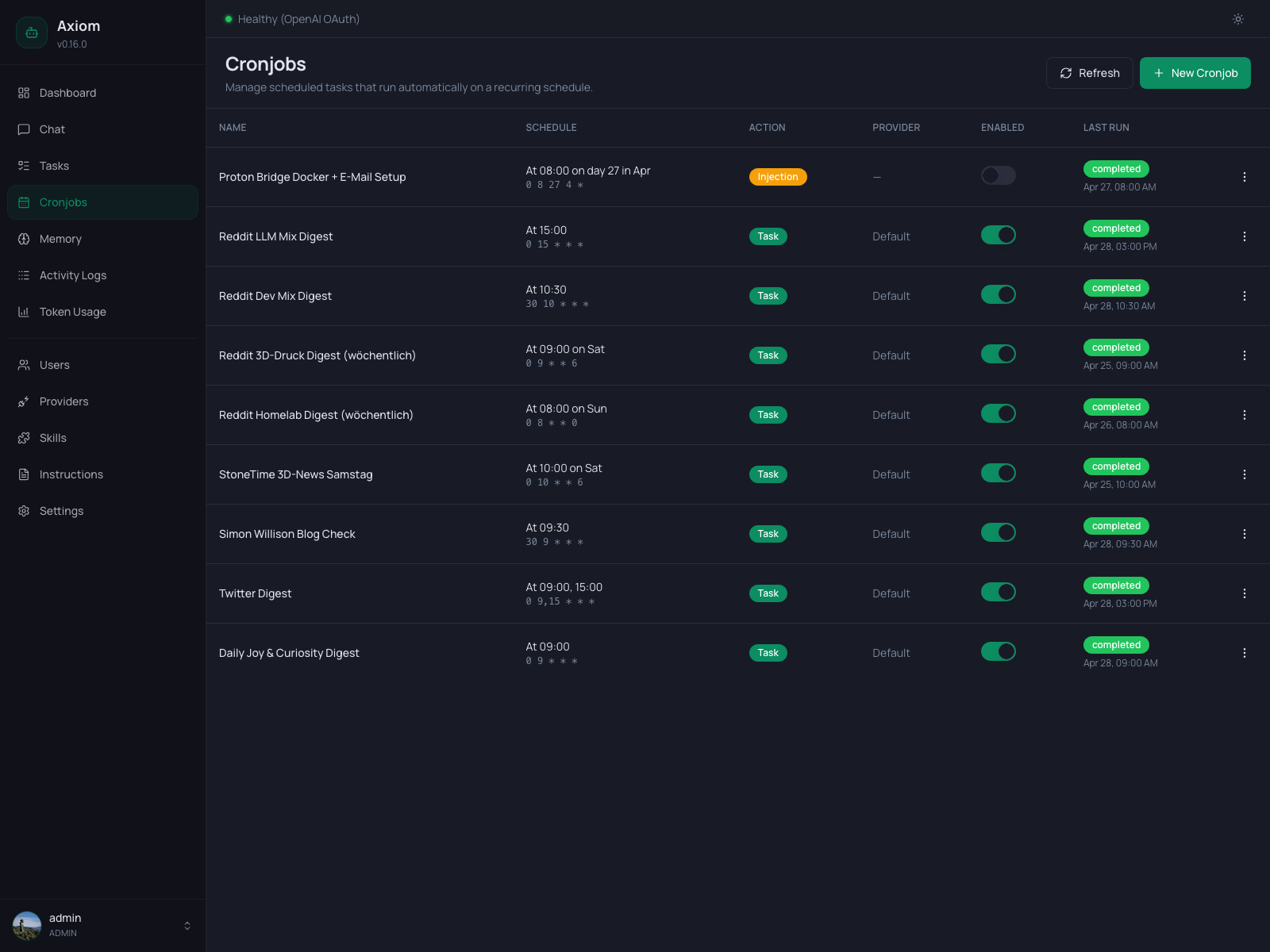
List view
The page is a filter toolbar above a list of scheduled cronjobs: a table on desktop, a stack of cards on mobile (see Mobile layout).
Header actions
A single button in the page header:
- New Cronjob opens the create dialog (see Create / Edit dialog below).
The Refresh button sits at the right end of the filter toolbar, not in the header.
Filter toolbar
Six filters sit at the top, plus a Refresh button. They combine with AND semantics: pick an action type and a provider and a last-run status to narrow down. Filtering happens client-side on the already-loaded list, so it is instant.
| Filter | Options |
|---|---|
| Search | Free text. Matches against the cronjob name, the prompt, and the names of attached skills (case-insensitive). |
| Enabled state | All states, Enabled only, Disabled only. Defaults to Enabled only. |
| Action type | All actions, Task, Injection. |
| Provider | All providers, Default, or a specific Provider (model) pairing. Only matches Task cronjobs; injections never match a provider filter. |
| Last run status | All last runs, Running, Completed, Failed, Never ran. |
| Schedule type | All schedules, Recurring, Fixed date. |
| Refresh | Re-fetches /api/cronjobs. The list does not auto-poll, so click this to pull in fresh Last Run info after a fire. |
A few details worth knowing:
- Enabled state defaults to
Enabled only. Disabled cronjobs are hidden when the page loads. Switch the filter toAll statesorDisabled onlyto see them. Because this is the default, it does not count as an active filter (see the mobile badge below). - The Provider dropdown is built from the data, not from the configured-providers list: it only offers providers that some
Taskcronjob actually uses. TheDefaultentry appears only if at least oneTaskcronjob runs on the task default, and it selects exactly those. - Never ran matches cronjobs that have no
Last Runtimestamp yet. - Schedule type is derived from the cron expression.
Fixed datemeans both the day-of-month and month fields are fixed numbers (e.g.30 11 30 3 *), so the schedule fires on specific calendar dates at most once a year. That is the shapecreate_reminderproduces for one-shot reminders. Everything else isRecurring.
Columns
| Column | Notes |
|---|---|
| Name | The cronjob name, plus badges for any customizations (see Name badges). |
| Schedule | Top line: human-readable (e.g. "At 09:00 on Sat"). Bottom line: the raw 5-field cron expression. |
| Action | Task (green) or Injection (amber). See Action types. |
| Provider | Default (uses Settings → Tasks), a specific Provider (model), or — for injections (no agent runs). |
| Enabled | A live toggle. Flipping it pauses or resumes the cronjob without deleting it. |
| Last Run | Status badge (completed / failed / running) plus the local timestamp of the last firing. — if never fired. |
| ⋮ | Row menu — Edit, Run Now, Delete. |
Clicking anywhere else on a row opens the same edit dialog as the menu's Edit item.
Name badges
Customizations show up as small badges in the Name cell so you can see at a glance which entries deviate from the defaults. Override badges sit inline next to the name; attached-skill badges get their own line below it.
Inline, next to the name (outline style):
custom tools: the cronjob has tool overrides (some tools disabled for this run).custom skills: the cronjob has skill overrides (some skills disabled for this run).custom prompt: the cronjob has a custom system prompt that completely replaces the default task agent system prompt.
On a second line below the name (secondary style):
- 📎
<skill-name>: one badge per attached skill. Attached skills get theirSKILL.mdinjected directly into the task prompt on every firing. Hover a badge for a tooltip naming the skill. See Tasks & Cronjobs →attached_skills.
A row with no badges runs on the unmodified defaults. On mobile, all badges (overrides and attached skills) share a single wrapping row below the name.
Mobile layout
Below the md breakpoint the table is replaced by a vertical stack of cards, one per cronjob. Each card contains the same information as a table row, rearranged:
- Top row: cronjob name, the
Task/Injectionbadge, and the ⋮ menu (Edit, Run Now, Delete). - Badge row: override badges and 📎 attached-skill badges, only shown if the cronjob has any.
- Schedule: human-readable text with the raw cron expression underneath, next to a Last Run block with status badge and timestamp (or
—if never fired). - Bottom row: the Provider label (Task cronjobs only) and the Enabled switch.
Tapping anywhere on the card opens the edit dialog, the same as clicking a table row. The switch and the ⋮ menu are exempt from that, so toggling or opening the menu does not open the dialog.
The filter toolbar collapses into a Filters button that opens a popover with all six fields, plus a compact Refresh icon button next to it. The Filters button shows a count badge when any filter differs from its default. Since Enabled only is the default, that filter alone does not produce a badge.
Action types
The Action column distinguishes the two cronjob flavors:
| Badge | Meaning |
|---|---|
Task | Each firing spawns a full task agent with the configured prompt, tools, and skills. Use for anything that needs to think, fetch data, or run tools. |
Injection | Each firing inserts the configured prompt verbatim into the parent chat as a system message. No agent runs. Used for static periodic notifications and reminders. |
Reminders created via the agent's create_reminder tool show up here with action type Injection — internally they're just cronjobs with a tighter contract. See Tasks & Cronjobs → Reminders.
Enabled toggle
The switch in the Enabled column (or on the card, on mobile) flips enabled on the database row immediately. The scheduler skips disabled cronjobs. There is no confirmation dialog: toggling is meant to be a quick, reversible action.
Note that the Enabled state filter defaults to Enabled only, so a cronjob you just switched off disappears from the list. It is not deleted. Set the filter to All states or Disabled only to find it again and switch it back on.
Auto-disable. Some cronjobs disable themselves after firing. If a cron expression matches a single point in time more than 364 days in the future (e.g.
30 11 30 3 *= March 30 at 11:30, fired bycreate_reminder), the scheduler auto-disables the row after the first run so it doesn't fire again next year.Task-type cronjobs are never auto-disabled.
Row menu (⋮)
| Item | What it does |
|---|---|
| Edit | Opens the Create / Edit dialog prefilled with the current cronjob. |
| Run Now | Fires the cronjob immediately, ignoring its schedule. Returns a success banner with the cronjob name. |
| Delete | Destructive — opens a confirmation dialog before removing the row. |
Run Now uses the same code path as a scheduled firing: Task cronjobs spawn a fresh task (visible in the Tasks page with trigger cronjob); Injection cronjobs deliver their message into the parent chat right away. Useful for testing a cronjob's prompt without waiting for the next scheduled tick.
Empty state
There are two distinct empty states:
- No cronjobs at all. The list is replaced by a centered message, "No scheduled tasks. Create a cronjob to automate recurring tasks like daily summaries or periodic checks.", with a
New Cronjobbutton right there. - No filter matches. You have cronjobs, but none pass the current filters. The message reads "No cronjobs match the filters. Adjust or reset the filters to see more cronjobs." and offers a Reset filters button that restores every filter to its default, including
Enabled onlyfor the enabled state.
Because the enabled filter defaults to Enabled only, a fresh install whose only cronjobs are disabled shows the no filter matches state, not the no cronjobs one.
Create / Edit dialog
Both New Cronjob and the row's Edit item open the same modal dialog. The form is split into three sections: basics, provider (Task only), and a collapsible Advanced Configuration block (Task only).
Basics
| Field | Notes |
|---|---|
| Name | Required. Free text. Shown in the list, in <task_injection> blocks, and on the Tasks detail view. |
| Prompt | Required. For Task: what the task agent should do on each firing. For Injection: the literal text to insert into chat. |
| Schedule | Required. 5-field cron expression — minute hour day-of-month month day-of-week. Examples: 0 9 * * * (daily at 9:00), */15 * * * * (every 15 min), 30 14 * * 1-5 (weekdays at 14:30). |
| Action Type | Task (full agent) or Injection (lightweight). Switching to Injection hides the provider and Advanced Configuration sections — they don't apply. |
Schedules are evaluated in the timezone configured under Settings → Agent. Changing the timezone reinterprets every enabled cronjob on the next tick.
Provider
Only visible when Action Type is Task. Pick:
- Default provider — uses whatever is configured under Settings → Tasks. When you later change the default, this cronjob picks it up automatically.
- A specific
Provider (model)pairing — pins the cronjob to that exact provider/model combination regardless of any future default changes.
Each entry expands every provider's enabled models into its own option, so the same provider can appear multiple times for different models.
Advanced Configuration
Collapsible section, only available for Task-type cronjobs. The header carries a customized badge whenever any override is set, so you can tell at a glance whether to expand it.
It bundles four overrides:
Tool Overrides
A switch for every tool in the agent's tool registry. By default every tool is enabled — flipping a switch off excludes that tool for this cronjob's firings. Newly added tools (after a code update) default to enabled, so disabling here is allowlist-by-exception.
If a previously disabled tool no longer exists (e.g. it was renamed or removed), it shows up below the live list with strike-through styling so you can clean up the dead override.
Skill Overrides
Same pattern, but for installed skills. Each row shows the skill's emoji, display name, and ID. Disabled skills stay out of the cronjob's <available_skills> list. As with tools, stale entries appear crossed out so you can remove them.
Attached Skills
Different mechanism — these get baked into the prompt. For every selected skill (both agent skills under /data/skills_agent/<name>/ and installed user skills), the runner reads its SKILL.md and prepends it to the spawned task's system prompt under an <attached_skills> block.
This is the deterministic alternative to relying on the agent's routing decision: when a cronjob's reliability depends on a skill (e.g. a daily Nitter scrape that needs the nitter skill's URL conventions), attaching it guarantees the rules are in the prompt every time.
A small tag next to each skill name marks it as either agent or installed. Selected skills also appear as a 📎 badge row at the bottom of the section, mirroring how they show up in the list view.
See Tasks & Cronjobs → attached_skills for the full mechanics.
System Prompt Override
A free-text textarea. When set, it completely replaces the default task agent system prompt — including the STATUS / SUMMARY final-message contract, the /workspace pointer, and everything in <task_system>. Leave empty to use the default.
Use sparingly. The defaults exist for a reason; the most common use case is a cronjob that needs a very different persona or output format than a normal task agent.
Submitting
The footer has Cancel and Create / Save (depending on mode). The button shows Saving… while the request is in flight; on success the dialog closes and the list reflects the change immediately.
Delete confirmation
Selecting Delete from the row menu opens a ConfirmDialog:
Delete cronjob? This will permanently remove the scheduled task. Any running instances will not be affected.
The destructive Delete button is styled red. Confirming removes the scheduled_tasks row and cancels the in-memory timer. Tasks that were already spawned by this cronjob in the past stay visible in the Tasks page — only the schedule itself is gone.
See also
- Tasks & Cronjobs concept — scheduler internals, cron grammar, action types, reminders, attached skills, the OS-scheduler safety rule.
- Settings → Tasks — defaults that apply to every
Task-type cronjob (provider, max duration, loop detection, telegram delivery, status updates, background thinking level). - Settings → Agent — timezone, which controls how cron expressions are interpreted.
- Tasks — every
Task-type firing creates a row there with triggercronjob.